
“Location Not Available”? How to Find a Lost Company iPad / iPhone - Mosyle MDM Demo
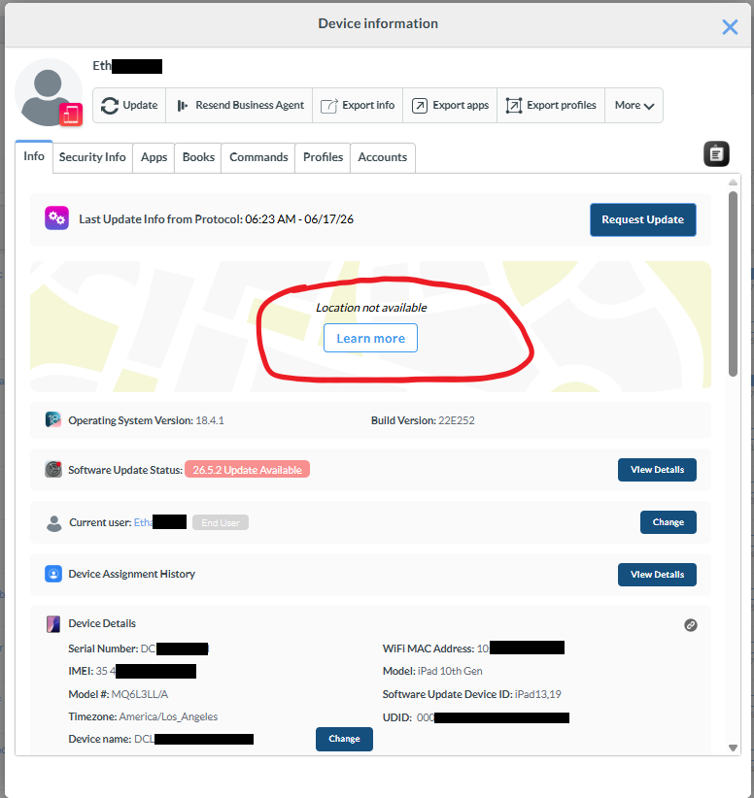
You paid for this fancy service that promised you will be able to track or locate your mobile device when it is lost but for some reason all you are seeing is “location not available” when you try to locate a device.
Were you scammed or are you doing something wrong?
When a Company Device Goes Missing
A company iPad disappears. You open Mosyle, select the device, and expect a map—but instead see “Location not available.” Has the tracking service failed? Usually, no. The message often reflects Apple’s privacy controls, an outdated location report, or a device that cannot receive a command.
This guide explains why that happens and shows how an administrator can use Mosyle’s Managed Lost Mode to lock and locate a supervised company-owned iPhone or iPad.
Important: Managed Lost Mode is for supervised iPhone and iPad devices. The device must connect to the internet before it can receive the command or return a current location.
Why Mosyle May Show “Location Not Available”
Under normal use, location reporting depends on the device’s configuration, Location Services, the Mosyle Manager app, and a working network connection. Apple gives users control over Location Services, so an MDM cannot silently override those settings during routine use.
During setup, IT may allow the Mosyle Manager app to use location consistently. Apple can later prompt the user to review that permission. If the user changes it, closes the app, powers off the device, or loses connectivity, Mosyle may show no location or only an older report.
What Managed Lost Mode Does
For a supervised iPhone or iPad, Managed Lost Mode lets an MDM administrator lock the device, display recovery instructions, request its current location even when Location Services are off, and optionally play a sound.
Only an administrator can turn Managed Lost Mode off. When it is disabled, Apple informs the user that the device’s location was requested; the feature is not designed for secret, continuous tracking.
Step-by-Step: Locate the Device in Mosyle
1. Check the device’s current location status
Select the device in Mosyle. If you see “Location not available,” Mosyle is not receiving usable location data from the device.
2. Verify the timestamp—not just the map pin
When View location on map is available, compare the location timestamp with the current date and time. In this example, the device screen shows 10:37 p.m. on July 27, 2026.

After selecting View location on map, the returned location is dated July 24, 2026. That map pin is historical—not proof of the device’s present location.

An old timestamp can mean the app is no longer reporting location, the device is powered off, or the device is offline. If the device is genuinely missing, continue with Managed Lost Mode.
3. Activate Managed Lost Mode
1. Close the map window.
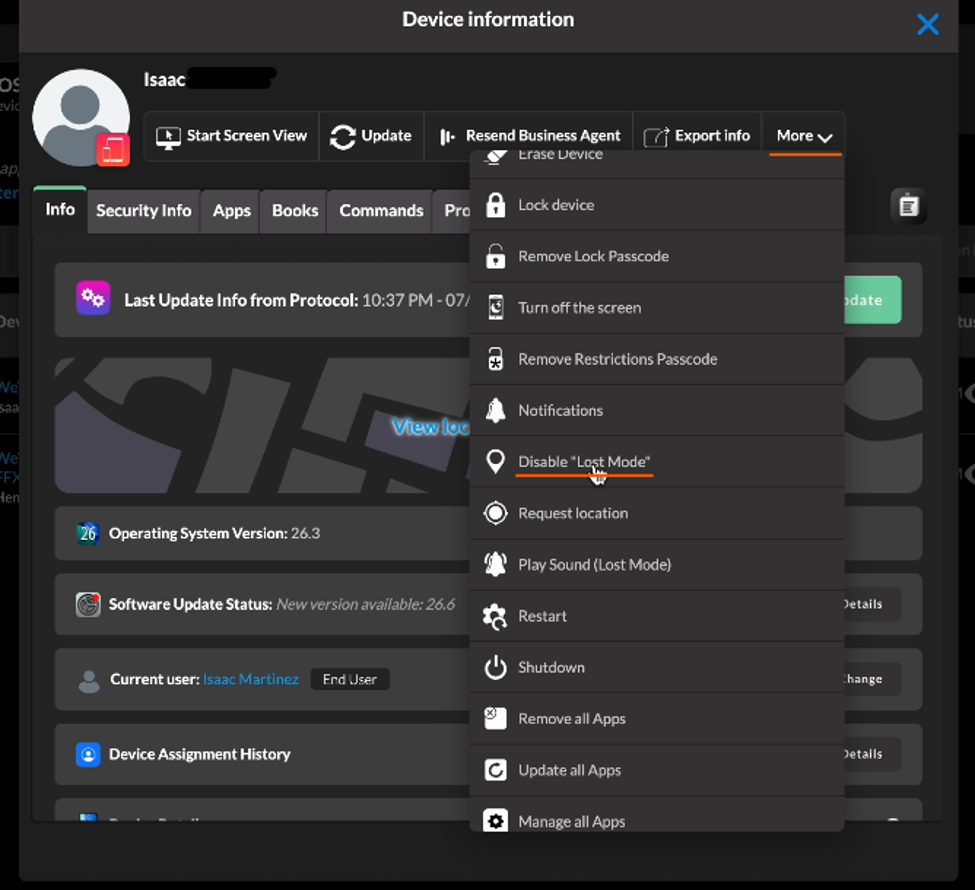
2. Open More for the device.
Scroll down and select Activate “Lost Mode.”

4. Add a clear recovery message
Enter a message and a monitored phone number that a finder can use. Keep the wording short, avoid sensitive internal details, and then select Confirm.

5. Request and verify the updated location
After Mosyle confirms the command, return to the device and select View location on map. A newer timestamp indicates that the device received the command and returned updated location data.


If the Location Does Not Update
The most likely reason is that the device is powered off or has no internet connection. Managed Lost Mode cannot be delivered until the device reconnects.
· Leave the Lost Mode command active so Mosyle can deliver it when the device comes online.
· Use the Lost Mode sound option to help locate a nearby device after it receives the command.
· Make sure the lock-screen message includes a monitored return number.
· Continue following your organization’s incident-response and asset-recovery procedures.
What the Finder Sees
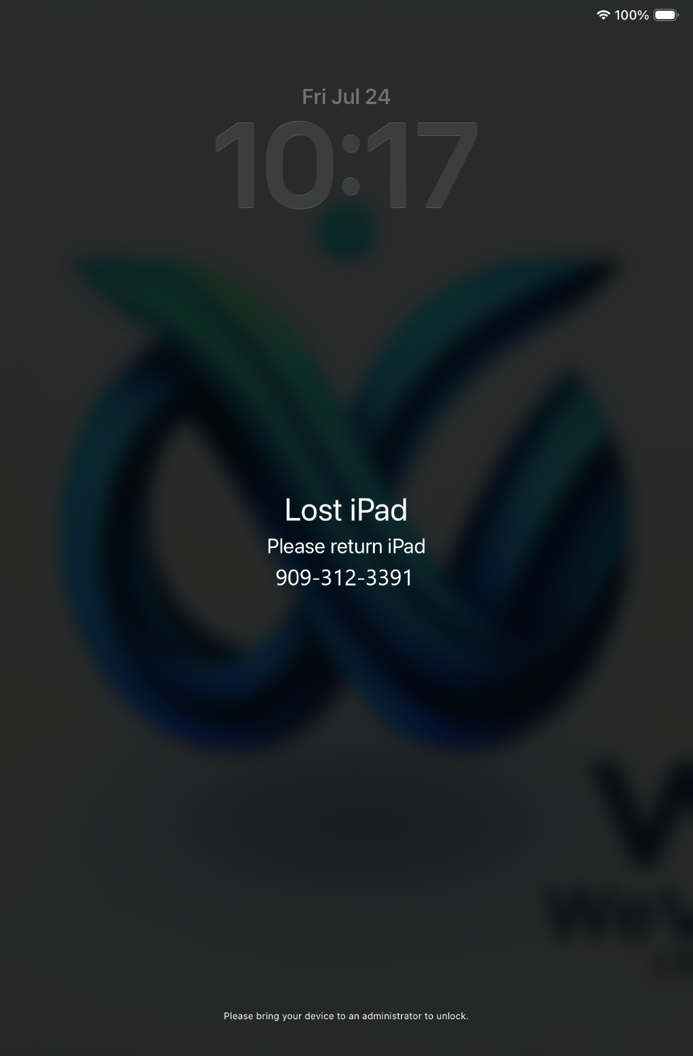
While Managed Lost Mode is active, the device is locked and displays the administrator’s message and contact information. The current user cannot unlock it; only the administrator can exit Managed Lost Mode.
After the Device Is Recovered
1. Open the recovered device in Mosyle.
2. Select More.
3. Choose Disable Lost Mode.
4. Confirm that the device unlocks and resumes normal check-in.
When Managed Lost Mode is turned off, the user is informed that the device’s location was requested. This transparency is part of Apple’s privacy design.

Conclusion
“Location not available” does not necessarily mean Mosyle has failed. First, check the timestamp and connectivity. If a supervised company iPhone or iPad is truly missing, Managed Lost Mode is the appropriate recovery workflow: lock it, display return instructions, request its location, and keep the command active until the device reconnects.


Comments