
The Mobile Device Management (MDM) platform Checklist — Built from 20+ Real Deployments
Most businesses pick an MDM platform the wrong way. They Google the most popular option. They pick whatever their carrier recommends. Or they go with whatever the IT vendor is already selling and three months later, they are stuck with a platform that cannot do half of what they actually need — or paying for features they will never use. We have been through this process over 20 times. First-time MDM deployments. Full platform migrations. Businesses with 10 devices. Businesses with over 200.
Every single time, the businesses that chose the right platform had one thing in common — they knew exactly what to look for before they ever spoke to a vendor. So, we put it all into one document.
Inside, you will find all 21 features we evaluate on every single MDM project, organized into three clear categories:
✅ Must-Have Features — The non-negotiables. If a platform cannot do these, walk away.
🟡 Good-to-Have Features — The ones that separate a functional setup from an efficient one.
⚡ Extra Time-Savers — The automation features that put your device management on autopilot.
Every feature includes a plain-English explanation of why it matters — written for business owners and operations managers, not IT engineers.
If you are a business owner or operations manager running a team with company iPhones or iPads — this was built specifically for you.
And if you want someone to walk through it with you personally and apply it to your specific environment, that is exactly what we do.
# | Feature | Why it Matters |
🔴 Must Have Features - Non-Negotiable | ||
1 | Support for your device platform (iOS, Android, or both) | Your MDM must fully support the devices your team actually uses — otherwise critical controls and workflows will simply not be available. This matters more than most people realize: some MDM platforms are built exclusively for Apple devices, some handle only Android, and others support both. Knowing this upfront helps you eliminate the wrong options early and focus your search. |
2 | Remote Wipe | If a device is lost, stolen, or not returned by a former employee, you need to erase company data immediately — not tomorrow, not after an IT ticket is processed. Remote wipe is your last line of defense against a data breach, and it should never be an afterthought. |
3 | Remote Lock | Remote lock lets you block access to a device instantly while you decide your next move. Based on real experience, a locked device — especially one displaying a phone number and a message on the screen — creates enough urgency that devices are sometimes returned. It buys you time, preserves your options, and keeps the situation in your control. |
4 | Ability to Clear Apple Activation Lock | Without this, a company-owned Apple device can become completely unusable the moment it gets locked to a personal account. This happens more often than you might think — a departing employee leaves behind a device tied to a personal Apple ID or one created with a work email. Without MDM support to clear this, recovering the device becomes a time-consuming process that delays reuse or replacement. |
5 | Integration with Apple Business Manager & Apple Certificate Portal | This connection is what gives you remote control over Apple devices, automated enrollment, and centralized app purchasing — all from a single platform. Most MDM solutions support this today, but it is still worth confirming during your evaluation. Do not assume. Verify. |
6 | Ability to Enforce a Device PIN or Passcode | A required passcode is your first barrier against unauthorized access — especially when a device is left unattended, misplaced, or handed off improperly. In practice, employees often request passcode removal because Face ID or fingerprint recognition fails when they are wearing safety gear at work. Without enforcement through MDM, one request is all it takes for that protection to disappear. |
7 | Ability to Block Unwanted Apps | Restricting unauthorized apps reduces security risks, protects company data, and keeps devices focused on business use. As a bonus, removing unnecessary pre-installed bloatware frees up storage and improves overall device performance. Fewer apps means a cleaner, faster, more manageable device. |
8 | Ability to Block Specific Websites | Website filtering keeps company devices focused on business use — blocking access to adult content, high-risk sites, and platforms that create distractions during work hours. It is a simple control with a significant impact on both security and productivity. |
🟡 Good to Have - Operational Advantages | ||
1 | Company App Catalog or Store | A centralized app repository ensures every required business app is available to the right devices — without depending on individual Apple ID credentials or sending employees to the public App Store. This eliminates a surprisingly common source of support requests and keeps app deployment consistent across the board. |
2 | Automatic App Installation | Required apps appear on devices automatically — no manual setup, no user intervention needed. This is not listed as a must-have because manual installation via Apple ID is technically possible when Activation Lock management is in place. But once you experience automatic deployment at scale, going back to doing it manually feels like a step backward. |
3 | Forced Manual Sync — Automated Device Enrollment (Apple Manager formerly, Apple Business Manager) | Newly purchased or reassigned devices sometimes need to appear in your MDM right away — not at the next scheduled sync window. When there is an urgent deployment and the next sync is an hour away, the ability to force a sync immediately can be the difference between a smooth rollout and a frustrated new hire. |
4 | Forced Manual Sync — Apps and Books (Apple Manager formerly, Apple Business Manager) | New app licenses need to be available when they are needed — not when the system decides to check. When an urgent app deployment or critical update cannot wait for a scheduled sync, forcing a refresh in the moment keeps operations moving without interruption. |
5 | Ability to Place a Web Shortcut on the Home Screen | This gives users instant access to key web tools or internal portals directly from their home screen — without requiring a full app install. It also eliminates the support calls from field employees asking how to save a webpage on their device. |
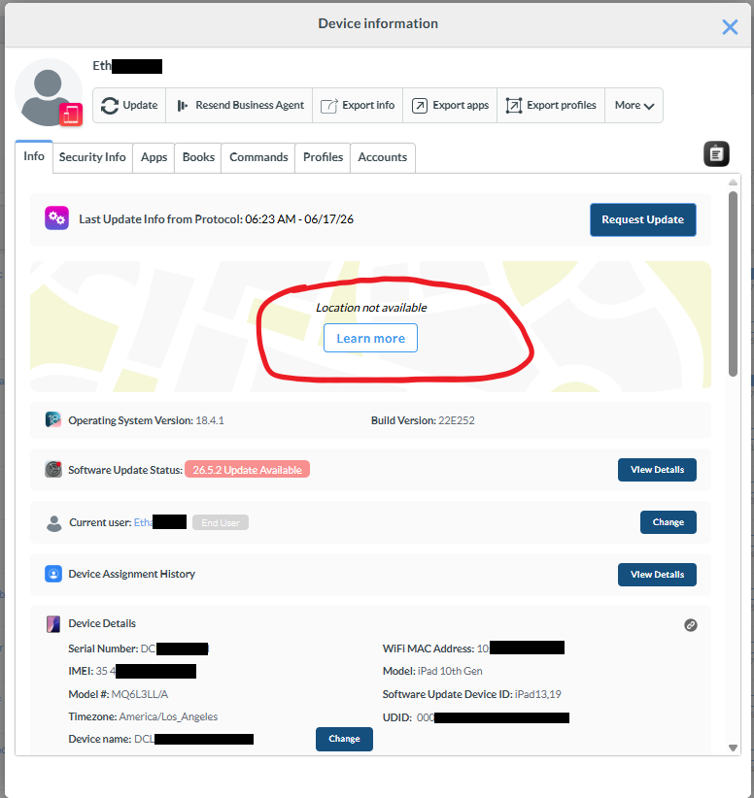
6 | Ability to Locate a Device and Trigger a Lost Mode Sound | When a device goes missing in the office, on a job site, or in a vehicle, the ability to ping it with a sound can recover it in minutes. Combined with lost mode, this gives you both visibility and a clear signal to anyone who finds it. |
⚡ Extra Time Savers - Automation & Efficiency | ||
1 | Ability to Skip Setup Steps During First-Time Device Setup | Automated enrollment should feel invisible to the end user. By skipping unnecessary setup screens — Screen Time prompts, Siri setup, software update screens, and more — devices are ready to use faster and with less friction. Most of these settings can be applied through policies after enrollment anyway, so there is no reason to walk employees through them manually. |
2 | Smart or Dynamic User and Device Groups | Dynamic groups are where MDM starts working for you around the clock. When a user is identified as a plumber, for example, the system automatically adds them to the Plumber group and applies all relevant apps and settings — no manual configuration required. Every new device enrolled for that role is ready to go from the moment setup is complete. |
3 | Device Action History and Audit Log | A detailed activity log tells you exactly what happened, when it happened, and who made the change. This is invaluable during support troubleshooting — for example, if a device suddenly loses network connectivity, checking when the ICCID number changed in the audit log can quickly point to the root cause and cut troubleshooting time significantly. |
4 | Device Inventory Details, Including IMEI and IMEI2 | Thorough inventory data makes device tracking, carrier management, and replacement planning far more efficient. IMEI data becomes especially valuable when cross-referencing MDM records with carrier reports, which often do not include serial numbers. Having both IMEI1 and IMEI2 helps you identify devices running two wireless lines — and catch situations where one line is active and another has been sitting unused and billing quietly. |
5 | Single Sign-On (SSO) Integration | SSO removes the need to create user accounts manually in your MDM each time someone joins the company. When an employee is onboarded in Microsoft 365 or Google Workspace, their details sync directly to your MDM — with the attributes you define. One action in one system. No duplicate work. |
Forced Manual Sync — SSO Integration | When a new hire, a promotion, or an access change needs to take effect immediately, waiting for a scheduled sync is not an option. Whether the next sync window is four hours away or overnight, forcing it in the moment ensures the right settings reach the right device without delay. | |
Alerts for Major Changes or Upcoming Expirations | Certificates, tokens, and integrations have expiration dates — and when they lapse unnoticed, device management can break across your entire fleet. Proactive alerts give your team time to act before an expiration becomes an outage. This is the kind of quiet, behind-the-scenes feature that you only appreciate fully after it saves you from a very bad day. | |
If you want someone to walk through it with you personally and apply it to your specific environment, that is exactly what we do. You can Book an appointment for a free session about this need.


Comments